Docs > Start
Install and first session
This page describes how to install Shift, start a session in a project, and try the interface without a model.
Before you begin
Shift runs on macOS and Linux in an interactive terminal. The Homebrew formula installs Guile 3, ripgrep and Python 3 for you. From a checkout you also need Git and Make.
Install with Homebrew
brew install thrashr888/tap/shiftThe command is shift-agent, because shift is a builtin in every POSIX shell. The formula compiles the runtime once at install.
Run from a checkout
git clone https://github.com/thrashr888/shift.git
cd shift
./bin/shift-agent
./bin/shift-agent is the same launcher as the installed command.
Start a session
Run shift-agent from the project you want to work on. Shift loads its code from the installation and keeps the project's state, tools and sessions in that project's .shift/ directory.
cd your-project
shift-agent
An interactive launch resumes the project's default session or creates it. To start a separate session, add --session NAME.
The default provider is Ollama on its standard port, with the model named in the agent file. To use another provider, set its key in the environment and choose a model:
export CLAUDE_API_KEY=...        # Claude
export OPENAI_API_KEY=...        # OpenAI-compatible endpoints
shift-agent
/model list
/model claude/claude-sonnet-5
To read the key from another variable, set agent-api-key-environment in the project's settings before launch. For endpoints, context limits and the effort settings, see Providers and context.
Try the interface without a model
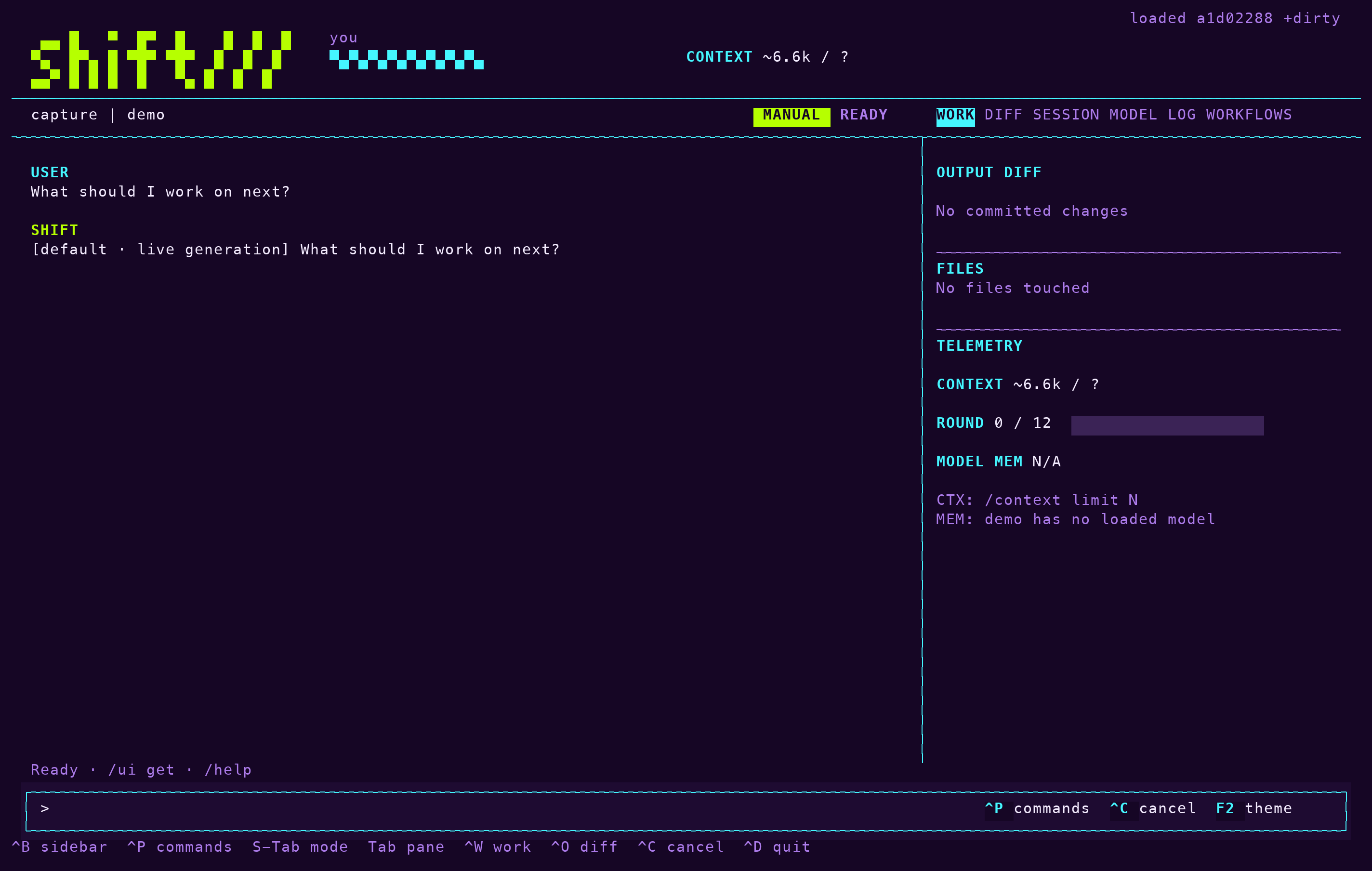
The demo model answers every prompt locally and never opens a network connection. Use it to learn the interface:
shift-agent --session demo --set 'agent-model="demo"'The session keeps the demo setting, so a later shift-agent without --session demo starts your real session instead.
Your first turn
- Type a request at the prompt and press Enter. In the default manual mode, Shift asks before each tool call except runs already on the allowlist.
- Read the receipt that ends the turn. It lists the files that changed, the commands that ran with their exit codes, and how to undo the turn.
- Press
^Bto open the sidebar. The Work tab follows the current turn; the Session tab lists this project's sessions.
Note: To undo the last turn, enter /undo. To print the last receipt again, enter /receipt.
What's next
- Choose a mode and set the run allowlist in Modes and policy.
- Give the project a procedure with checks in Workflows.
- Change the agent while it runs in The agent file.