Docs > Start
The terminal
This page describes the terminal interface: how the screen is laid out, the keys that move around it, the four built-in themes, and the commands that make the interface yours and keep it that way. The interface runs in the same session as the agent, with the same permissions, streaming and cancellation; it does not start a second agent.
Launch shift-agent from your project, or run make in a Shift checkout. It needs Python 3 with curses and an interactive terminal. To try the interface without a model, run:
shift-agent --session ui-demo --set 'agent-model="demo"'The layout
The screen has three parts:
- The transcript, where
USERandSHIFTrole blocks alternate with groupedREAD,EDITandRUNwork rows. A preview you have not approved never appears as a change. The live transcript keeps 3,000 lines, and a resumed session shows its last 50 saved messages. - The composer at the bottom. Up and Down browse the project's saved command history and restore an unfinished draft when you return to the newest entry.
- The sidebar, with five tabs. Work shows output, files and telemetry; Diff the unified diff; Session the session, its receipt, the durable sessions with a status mark, loaded skills and MCP peers; Model the provider's models; Log the output of every run and the background jobs still going.
The sidebar docks beside the transcript from 96 columns when the height allows. Below 40 columns or 18 rows, a compact transcript, status line and input replace the larger frame.
Keys
An approval takes one y or N keystroke without Enter. The rest of the keys are:
| Key | Action |
|---|---|
| Ctrl+B | Toggle the sidebar without discarding the draft. |
| Tab | Select the next sidebar tab; past the last visible tab it turns the page. Inside command suggestions it completes the selection. |
| Shift+Tab | Cycle the mode from manual to plan to autopilot and back, when idle. Clicking the mode badge does the same. |
| Ctrl+P | Open searchable command completion; Escape restores the draft. Typing / filters command names and argument choices. |
| F2 | Cycle the built-in themes, then any custom theme packs. A bare /theme does the same. |
| Ctrl+W, Ctrl+O | Fold work groups, or committed diffs and inline run output. |
| Ctrl+G | Jump to the latest transcript without changing the draft. |
| PageUp, PageDown | Scroll the transcript or the selected sidebar pane. Mac keyboards without page keys use Option or Ctrl with Up and Down. |
| Ctrl+C | Cancel the current turn, or clear an idle draft. |
| Ctrl+D | Exit and restore the terminal. |
| Escape | Dismiss an overlay, or decline an approval. |
The sidebar also has a full-width mode. /sidebar full lays its tabs out as columns across the whole width; /sidebar auto, on and off are the other choices.
Interface commands such as /theme, /name, /motion and /ui answer while the agent runs or waits for an approval. They never approve or decline the waiting request.
Choose a theme
To select a theme, enter /theme NAME. Four are built in:
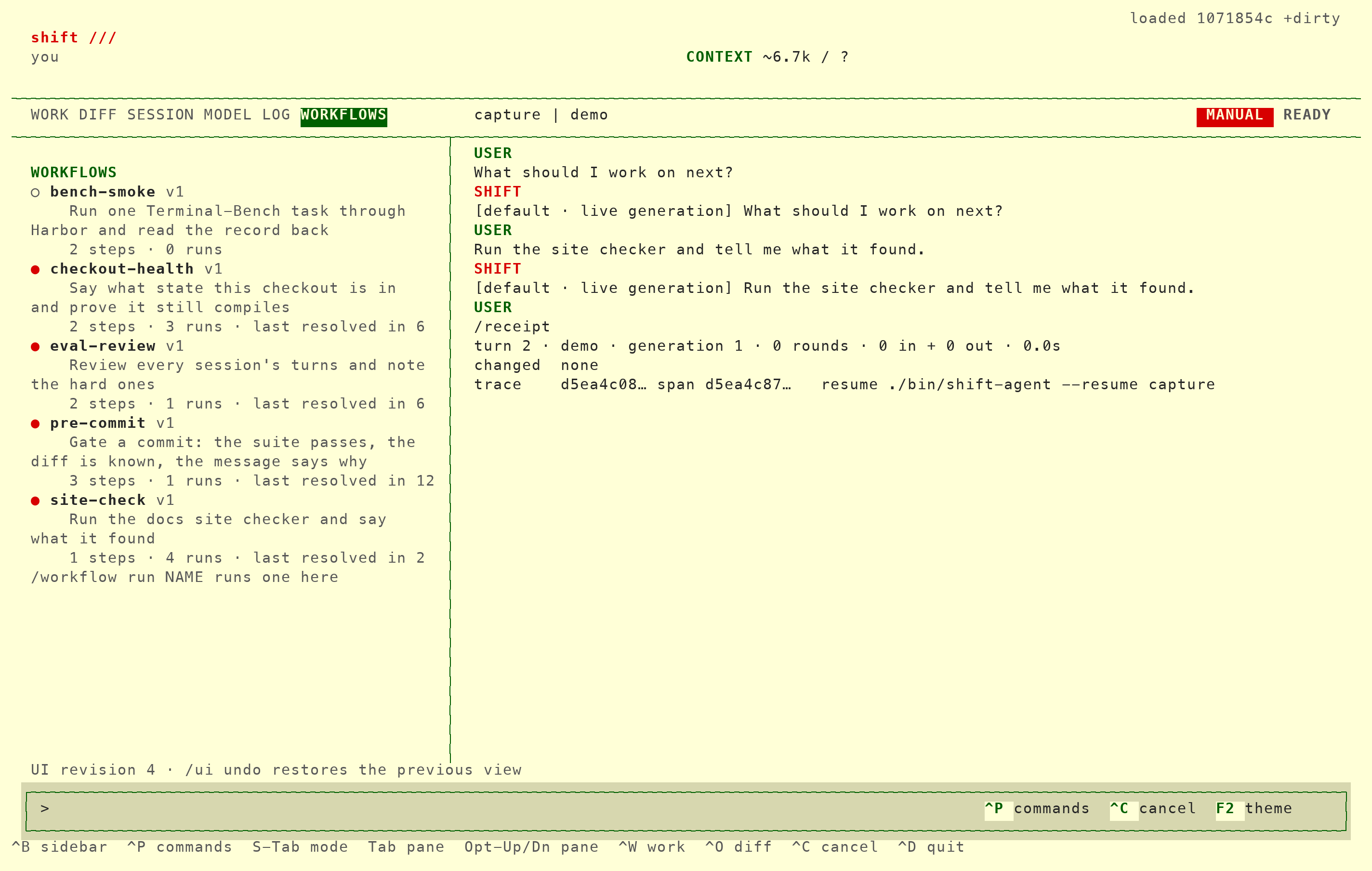
- Acid has a deep purple canvas with a lime, cyan and lavender hierarchy, a lowercase pixel wordmark, and a two-thirds transcript beside a one-third output pane.
- Paddock keeps paper colors and compact spacing, and docks the pane on the left.
- Blueprint gives the transcript the full width, with a three-row telemetry band above the composer, a spaced wordmark and a double composer border.
- QDOS uses a black canvas, a compact clickable command menu, green contextual help, white double rules, cyan metadata and yellow-on-red selection. Its default left pane fits at 80 by 25.
Each theme is one Scheme data file under themes/NAME.scm in the installation, your user config, or the project's .shift/, and the project copy wins. Copy a bundled pack under a new name to make it yours; a valid saved change activates within half a second, and an invalid one keeps the working view.
Each built-in theme is also a Ghostty theme, generated from the same pack so the surrounding terminal can match the full palette. Download them from the Make it yours section of the home page. Separately, the interface sets the terminal's default background, foreground and cursor color to the theme's whenever it loads, and resets them on exit. Enter /terminal off to keep your terminal as it is.
Set your identity and brand
/name NAME sets your personal identity. /brand replace puts your name where the wordmark was; /brand subtitle and /brand none are the other choices. Identity and explicit placement survive a theme change, and your explicit color overrides are never replaced by a theme's defaults.
Place the sidebar
/place takes left, right, top, bottom or modal, and wins under any theme. Left and right use the side-pane arrangement. Top and bottom give the transcript the full width with a telemetry band, and show diffs and the first 20 lines of run output inline under their work group.
Turn motion off
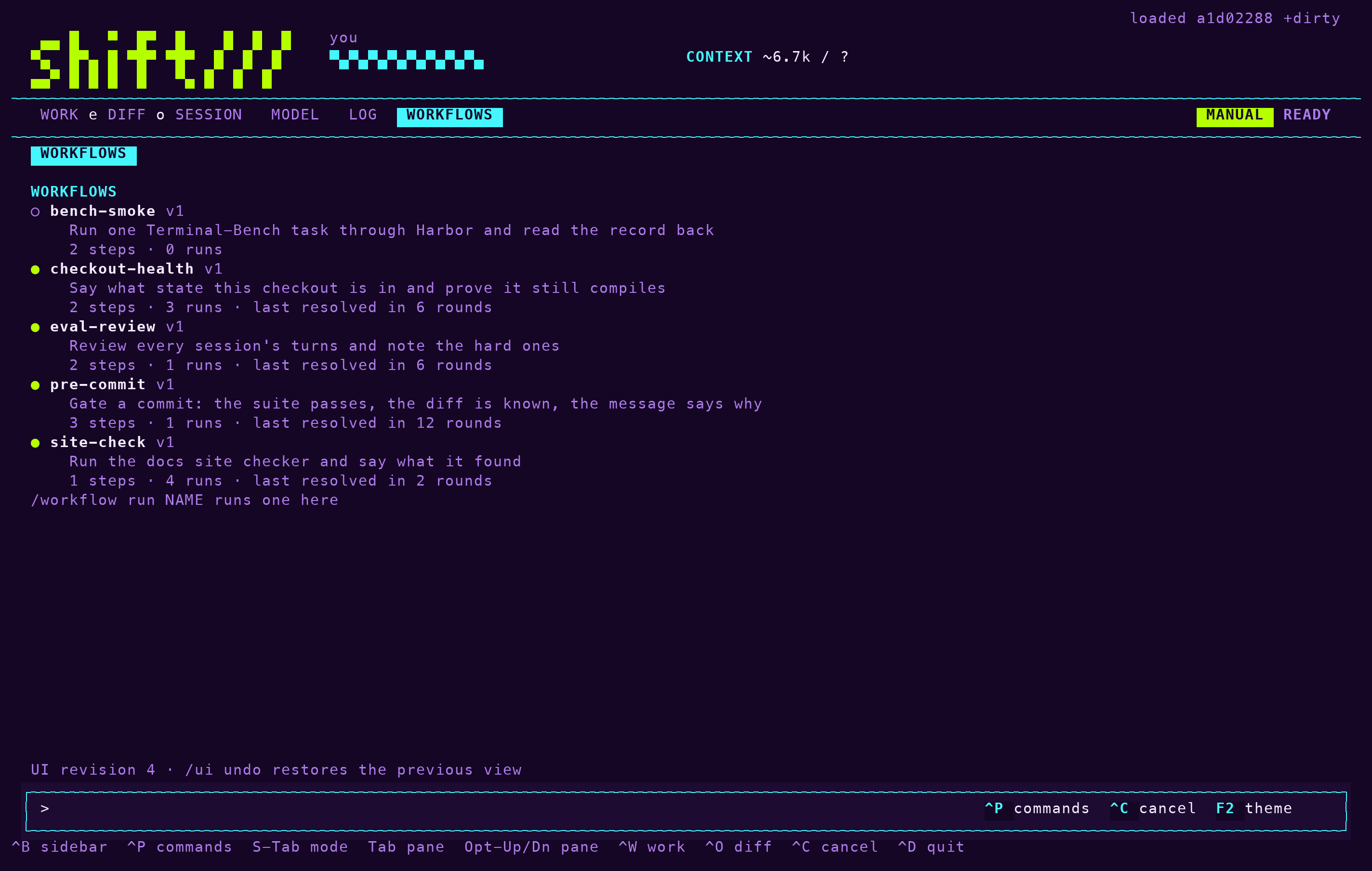
While the session is working, the /// mark cycles at four steps per second and a ticking ... marks where the reply will appear. Nothing else animates. /motion off stops the animation and leaves the WORKING text; /motion on restores it. The choice is saved with the other preferences. There is no automatic reduced-motion detection in curses.
Save preferences
Preferences live in ui.json in three places, from lowest to highest precedence: your user config, the project's .shift/, and the named session directory. A change you make is saved to the current session. To keep it beyond that session:
- Enter
/ui getto check the current configuration. - Enter
/ui save projectto keep it for this project, or/ui save userto keep it everywhere.
/ui undo restores the previous working revision; the undo stack is bounded and resets on restart. The agent has the same ui tool with get, patch, undo, reload and save. Manual mode asks before it changes anything, plan mode permits only get, and autopilot allows validated changes.
Note: Mode switching is a /mode command, not a preference. The agent's ui tool cannot change it.
Add your own tabs
A project can add up to four tabs of its own in .shift/panes.scm, a pane pack: one Scheme data form, never evaluated, whose rows are text, a live field such as session.model, or a command. The file loads whenever Shift runs in that folder, reloads within half a second when it changes, and is safe to commit. Clicking a command row, or entering /pane run NAME, starts it as a background job, but only when the run allowlist already permits it. The grammar and the field list are in the pane pack reference.
Command reference
| Command | What it does |
|---|---|
/theme acid | Select a built-in or user-owned theme. |
/name thrashr888 | Set personal identity. |
/brand replace | Replace the wordmark with your name (subtitle or none also available). |
/place bottom | Place the inspector left, right, top, bottom or modal. |
/sidebar auto | Select auto, on, full or off visibility. |
/motion off | Disable the working mark animation (on restores it). |
/terminal on | Sync the terminal's default colors and cursor to the theme (off restores). |
/pane run NAME [ROW] | Start a user-owned pane's allowlisted commands as background jobs. |
/ui get | Inspect current configuration. |
/ui undo | Restore the previous working UI revision. |
/ui reload | Reload the selected presentation pack. |
/ui save user | Promote preferences to user scope (project also available). |
What's next
- Pane packs for the rows a tab of your own can hold.
- Sessions for the durable sessions the Session tab lists.
- Providers and keys for the Model tab and the context bar.